
Home » Microsoft Dynamics 365 Hub» Microsoft Dynamics 365 Add-Ons » EZ Buttons
EZ Buttons for Microsoft Dynamics: Speed up your Daily Tasks
Use EZ Buttons to navigate and create records in fewer clicks.
- Simplify common functions
- Respond faster
- Stay better organized

How To Make Your Own EZ Buttons
How To Make Your Own EZ Buttons
How EZ Buttons Give You More Control Over Your Process
Need EZ Buttons in More Than One Place?
You can add the same EZ Buttons to any form or table in your CRM, without having to recreate it. That way, you can keep your button maintenance and configuration easily manageable.

Want to Keep Your CRM Setup Clean?
EZ Buttons let you define the conditions that control when they’re visible. If it’s a button that’s triggered by a particular action or data, it’ll only show up when it’s relevant to your current task.

Looking to Reuse Your Favorite EZ Buttons?
Existing EZ Buttons can be quickly duplicated with a few clicks instead of having to rebuild it from scratch. It’ll keep its same functions and once it’s duplicated, you can edit or modify it to fit your needs.

Have More Complicated Tasks That Could Be Automated?
With Power Automate, you can build an EZ Button that has more advanced functionality. With it, you can automate a multi-step process or trigger a workflow using the Power Platform.

Want to Manage Who Can See and Use EZ Buttons?
You can restrict access to certain buttons based on security role or department. You’ll control button visibility for your teams and ensure each one doesn’t break, delete, or modify a button they don’t need.

Move Faster Than Ever with EZ Buttons
EZ Buttons turns your multi-step tasks into clickable buttons to help you quickly complete your most common tasks.
Activities like sending follow-ups or scheduling appointments can become tedious and slow you down.
Those minutes add up and take your focus away from high-value work. With EZ Buttons, your day-to-day activities can be completed in seconds with less clicks!
Quickly Send Follow-Ups
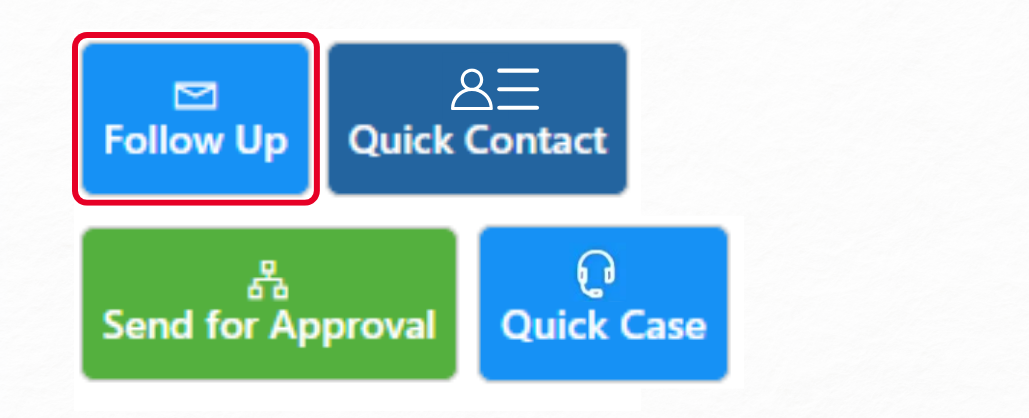
If you’re sick of sending the same follow-up every week, EZ Buttons lets you turn those messages into easy-to-use buttons.
Instead of typing the same email over and over, you can send it with a few clicks without leaving your CRM.

Instantly Send a Blank Email
To send a one-off message to a customer or prospect, you usually have to click out of CRM, open Outlook, and start a new email.
EZ Buttons lets you fire off a quick message with the push of a button. You spend less time clicking around and can move on to your next task.
Instantly Send a Blank Email
To send a one-off message to a customer or prospect, you usually have to click out of CRM, open Outlook, and start a new email.
EZ Buttons lets you fire off a quick message with the push of a button. You spend less time clicking around and can move on to your next task.
Schedule Appointments Without Leaving CRM
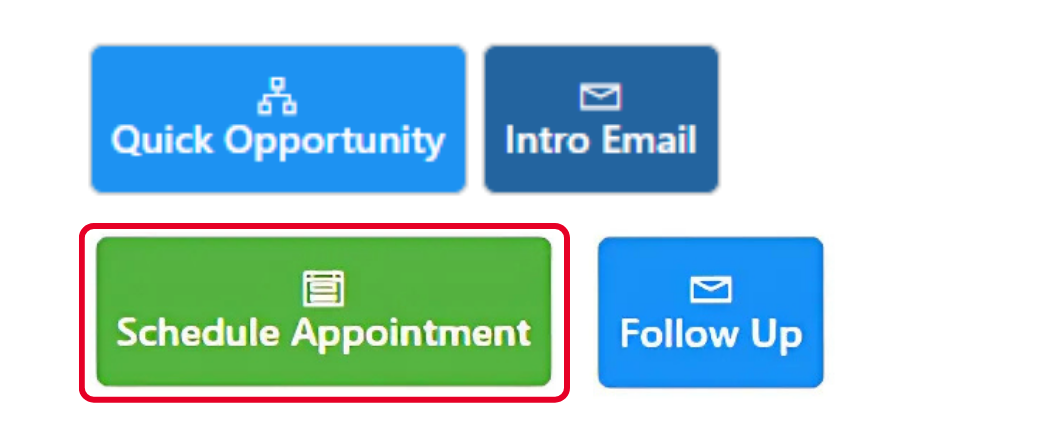
Scheduling meetings is an easy task, but it can quickly become time-consuming. With EZ Buttons, you can cut out the extra steps and schedule right from CRM.
No need to open Outlook. Just click the button, enter the details in the appointment screen, and send it!
Upload and Send Your Most Used Emails as Templates
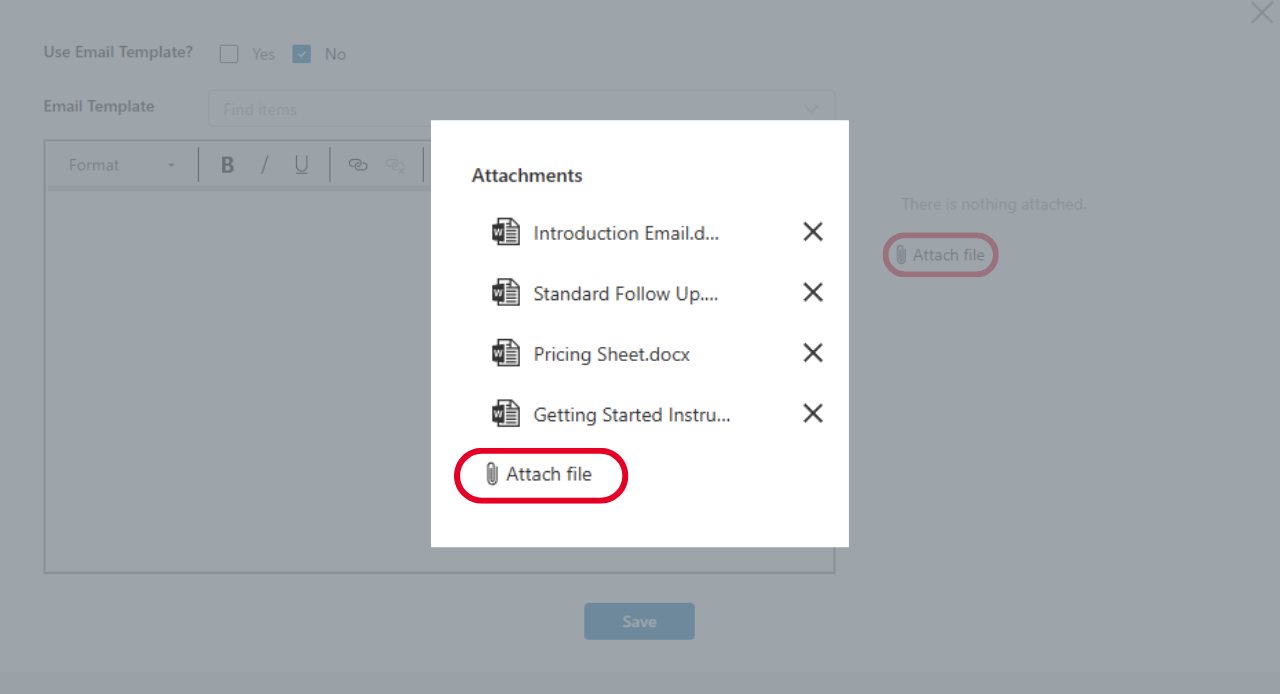
If you find yourself sending the same emails frequently, don’t waste time typing them out. Instead, upload your emails as templates to CRM and send them out faster.
You save time and you can send your emails out quicker without losing your momentum.
Upload and Send Your Most Used Emails as Templates
If you find yourself sending the same emails frequently, don’t waste time typing them out. Instead, upload your emails as templates to CRM and send them out faster.
You save time and you can send your emails out quicker without losing your momentum.
Step-by-Step Guide: How to Make Your Own EZ Buttons
Step 1: Navigate to your account and click the + New button in the top right corner.

Step 2: Click the appropriate EZ Button Type and hit Save.

Step 3: Next, you’ll want to Label your EZ Button, figure out which Entity you want it displayed on, the Entity, and select what custom or out-of-the-box Fields you want your button to have.
Then you can fill out the following fields based on what function you want your EZ Button to have and what you want to see on your entry screen.
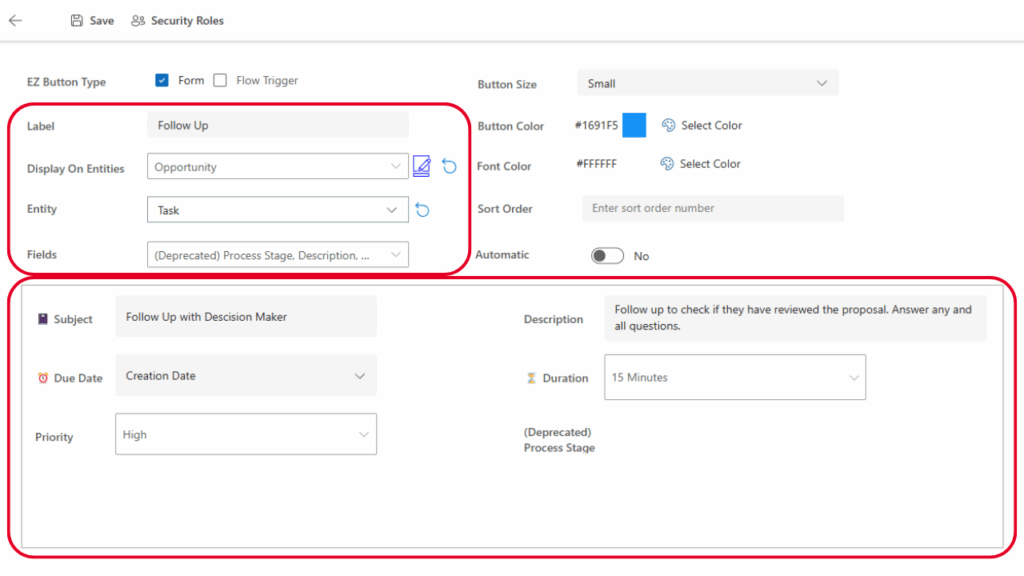
Step 4: Once you fill out the Fields, you can customize your EZ Button and choose how you want it to appear.
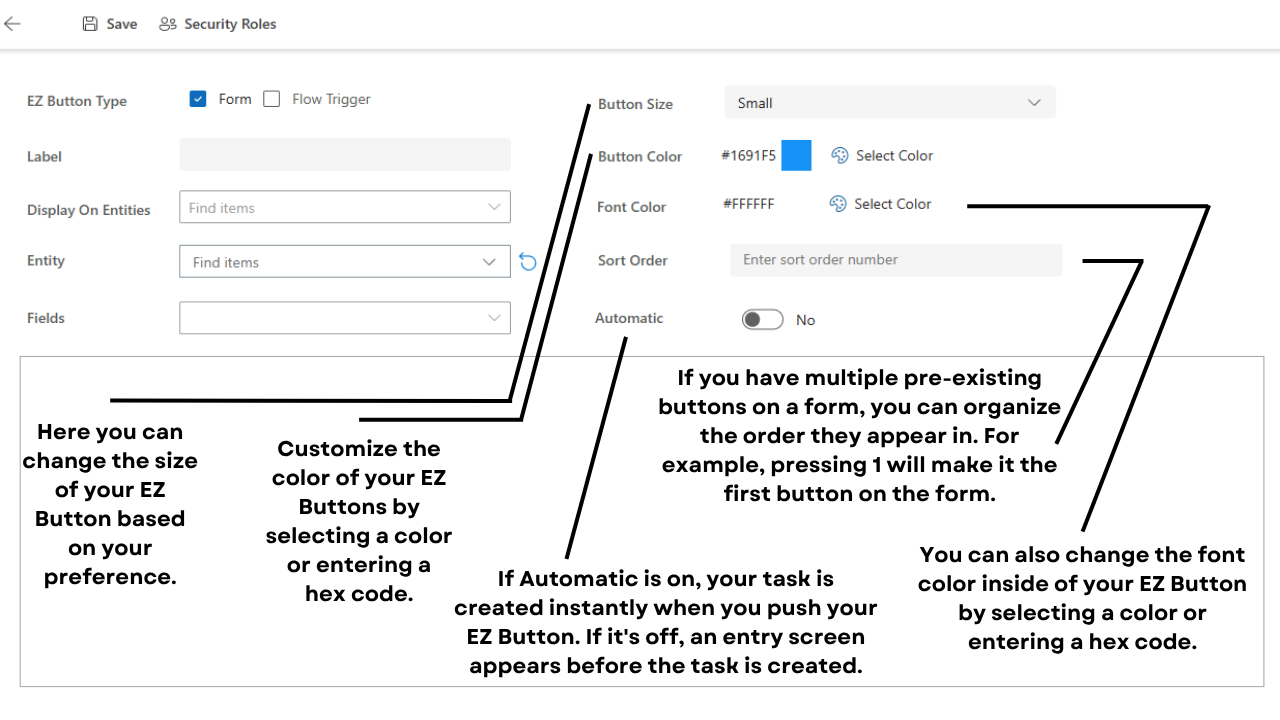
Step 5: When you’re done adding the Fields and formatting your EZ Button, click the Security Roles button next to the Save button.
Security Roles give you the ability to show or hide your buttons based on a user’s role in the system.
This will keep your screens tidy and show only what you want certain users to see.
When you’re done editing your EZ Button, hit Save in the top right corner.

Step 6: The final thing you need to do is test your EZ Button. Find your task and click into it.
If you don’t see your EZ Button, change the Stage to fit the right condition you set your EZ Button to when you created the fields.

Step 7: Once you’ve set the right Stage, hit Save & Close. Your button should appear. If it doesn’t, contact our support here.

How Microsoft Dynamics EZ Buttons work:
Jumping around from one form to the next can be an arduous process for your sales team. Often, those extra seconds it takes to jump from an Account to your Activities, or even from an Account to your quick create, is enough for many salespeople to neglect creating vital tasks. Important information is often forgotten about, and your customers end up paying the price.
The next time you want to add a Contact from an Account screen, create a follow-up task from an Opportunity, or create an Appointment from a Case, do it all with EZ Buttons!
With just a couple clicks, your team can now create a case, opportunity, or task, relevant information automatically populates, and without needing to steer away from the form they’re looking at.
Speed up your team’s workflow and keep tasks from getting forgotten, with EZ Buttons for Microsoft Dynamics 365 Sales!

EZ Buttons include:
Button types:
- Quick Opportunity
- Quick Case
- Quick Contact
- Create Task
- Create Appointment
- Create Phone Call
- Create Email
- Or build your own with default values!
For each of these entity forms:
- Accounts
- Contacts
- Opportunities
- Cases
EZ Buttons by Azamba is available for standalone purchase, or free with your OnTrack Virtual Coworker Membership for Premium and Preferred customers!
ONTRACK MEMBERS
OnTrack Virtual Coworker Membership Premium & Preferred members can schedule their install of EZ Buttons today!
Terms of Service
By signing up for Azamba products and services, you are agreeing to our Terms of Service.