
Home » Microsoft Dynamics 365 Hub» Microsoft Dynamics 365 Add-Ons » EZ Projects
Streamline your projects from creation to application with Microsoft Dynamics EZ Projects!
- Need a shortcut to track a recurrent routine in CRM?
- Want to create or recreate a multiple task project in just one click?
- Want to finally take your project management from Excel to Dynamics without breaking the bank?
- Need to view tasks by project instead of jumping around from one owner’s task list to another?

Stop managing projects in spreadsheets or randomly assigned tasks. Microsoft Dynamics EZ Projects make project sequences easier to create and clearer to manage!
If you consistently create the same project on a regular basis, we can help you reduce errors and minimize the steps it takes to complete that process.
Get a streamlined project management tool inside your CRM system with only the features you need and at a fraction of the cost of a third-party tool!
Managing projects can be cumbersome for any business. Whether your trying to organize multiple speadsheets in Excel or constantly recreating the same types of tasks in Dynamics. It’s easy to forget small, yet integral steps for projects that keep your business running. Worse yet, project management tools like Monday.com and Dynamics 365 Marketing can be overwhelming, with features a small or medium-sized business doesn’t need but is still expected to pay top dollar for.
Microsoft Dynamics 365 EZ Projects makes project creation and management effortless! Easily create groups of tasks based on frequent project types. Create 5, 10, or 20+ tasks in the same amount of time as creating a single task!
EZ Projects help:
- Salespeople document payment, shipping, installation, and other important task processes faster.
- Managers create bigger and more ambitious projects.
- Your whole team improve their accuracy, speed, prioritization, and organization when it comes to any frequent project sequence.
Streamline Your Projects From Creation to Completion with EZ Projects
EZ Projects comes with smart tools that make project management easy.
With each feature baked right into your CRM, you don’t have to use third-party apps to manage your tasks and projects.
Whether it’s one project or several, manage them with ease and never worry about missing a deadline again.
Manage Your Projects with Confidence Using These Powerful Tools
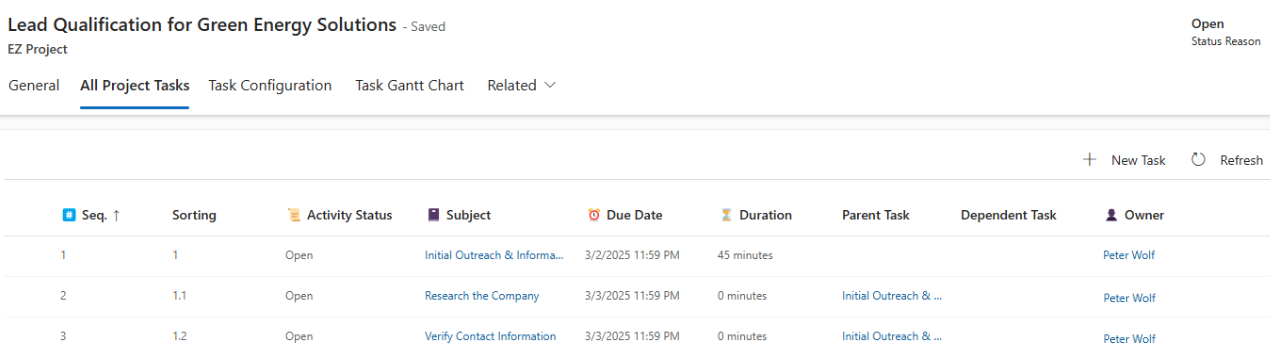
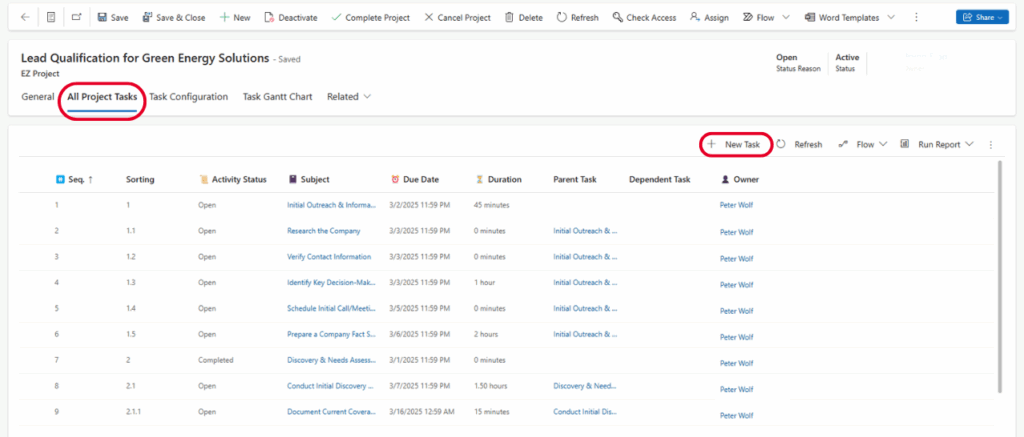
1. Quickly View All of Your Tasks with The All Project Tasks Tab
Keeping your tasks separate makes it hard to track of next steps.
With the All Project Tasks tab, you can see all of your tasks in a sequence so you always know what’s next and stay on schedule.
2. Easily Configure Your Tasks with The Task Configuration Tab
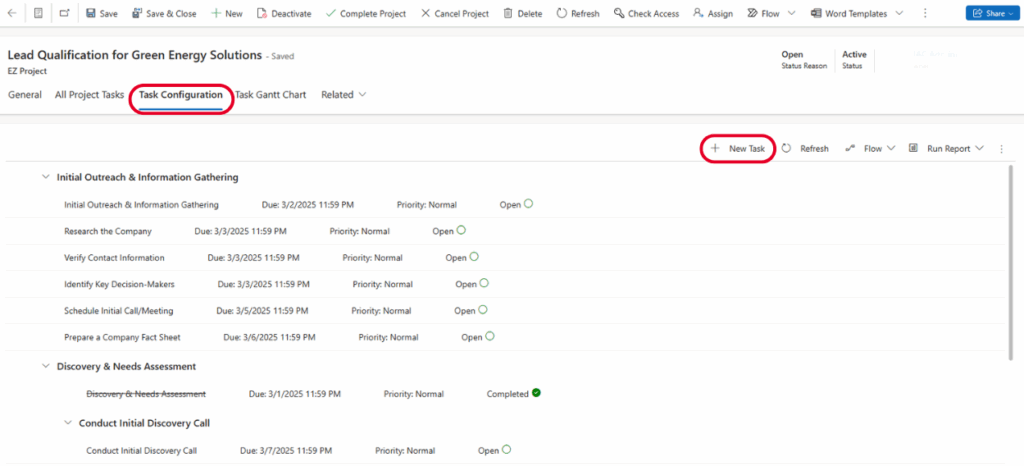
View and check off your tasks as you complete them. You can also add new ones or edit existing ones in seconds.
The Task Configuration tab gives you a quick overview of what you need to get done, so you never miss a task again.
3. Instantly Get a Visual Overview of Your Tasks and Progress with a Gantt Chart
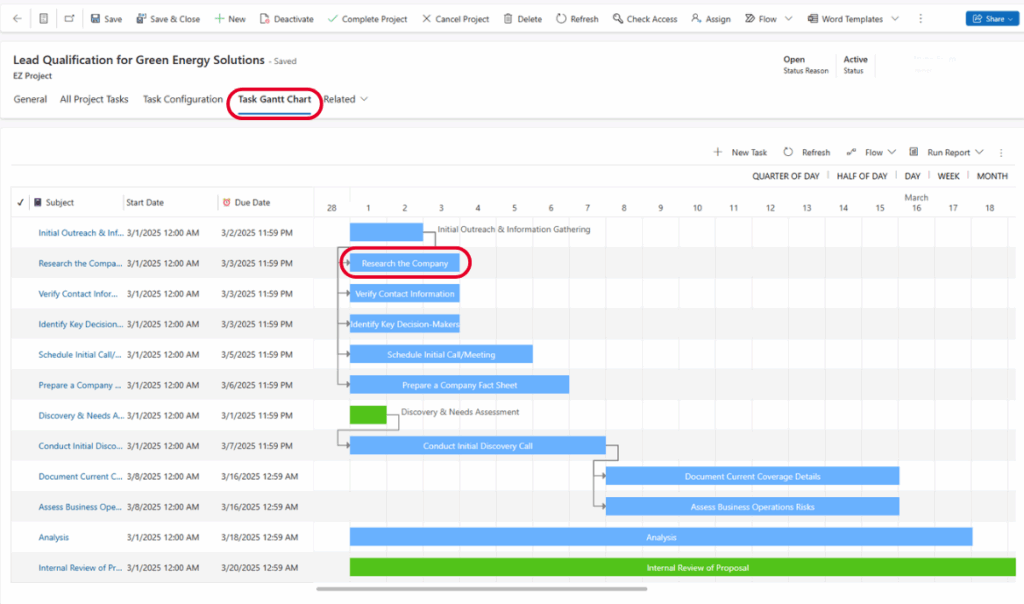
In this view, you can see where you stand at a glance and spot issues before they occur.
The Gantt Chart gives you a visual overview of your projects and updates automatically when there are changes.
You can also add tasks if more steps are needed in your process.
4. Effectively Manage Your Projects with the EZ Projects Timeline
With the EZ Projects Timeline view, you can easily keep tabs on your progress without asking your team for updates or going through your task list.
With this view you’ll never have to leave your screen for updates and you’ll always be on top of what’s next.
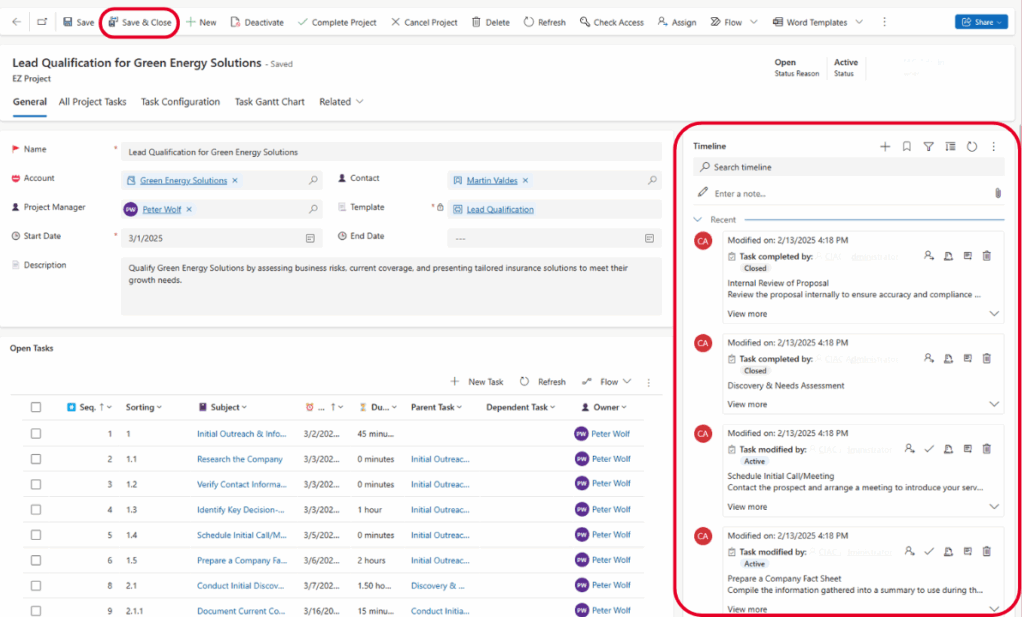
See EZ Projects in action:
Step-by-Step Guide: How To Make Your Own EZ Projects
Step 1: Navigate to the EZ Projects tab on the left-hand menu and click on it. When you’re in the EZ Projects view click the + New button in the top left corner.

Step 2: Fill in the necessary details for your EZ Project as shown below and hit Save.
You will need to create a Template for your project which we will show you how to do in the next step.
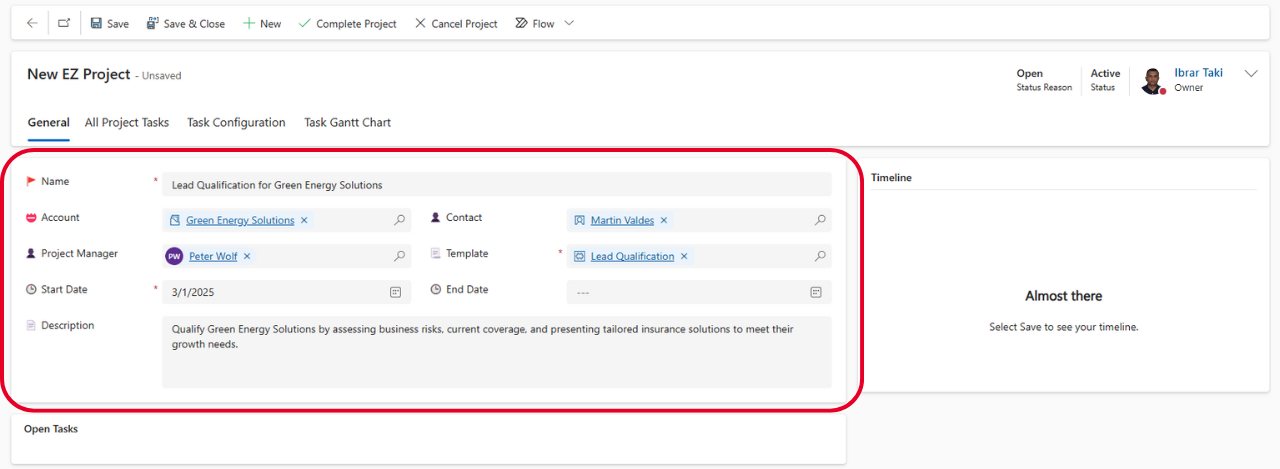
Step 3: If you find yourself doing the same recurring projects like onboarding a customer or qualifying leads, you can save and upload this project as a template. This helps you move faster and save time.
To upload a template or create a new one, click on the Template field and select a pre-existing template from the dropdown menu or click the + New button.

Step 4: Before adding tasks to your Template, be sure to label it for easier access.
Once you label it, you can start adding tasks with the + Add New Task button below the Name field.
Be sure to hit Save when editing or Save and Close when you’re done.

Step 5: When adding new tasks to your template, a Quick Create screen will pop up. Enter all the necessary details such as the Default Owner of the task and the Name of the task.
You can use the Default Owner field to assign tasks to your team members, write notes in the Description field, place the task in a specific order using the Sequence field, set a Due Date, specify how long the task should take using the Duration field, and you can assign this task to a Parent Task if it falls under a primary task.
Once you’ve entered all your details, hit Save and Close. Now you can start your project.

EZ Projects by Azamba is available for standalone purchase, or free with your OnTrack Virtual Coworker Membership for Premium and Preferred customers!
ONTRACK MEMBERS
OnTrack Virtual Coworker Membership Premium & Preferred members can schedule their install of EZ Buttons today!
Terms of Service
By signing up for Azamba products and services, you are agreeing to our Terms of Service.