OnTrack Sales Hub Guide
Home » Microsoft Dynamics 365 Hub » Microsoft Dynamics 365 Services » OnTrack Sales Hub
OnTrack Sales Hub
Your single solution to a simpler, faster CRM.
Give your team a focused, intuitive workspace, so you can spend less time navigating your system and more time building relationships and closing deals.
Built from 20+ years of CRM experience and hundreds of successful implementations.
Best of all? It’s 100% free to install and use. No commitment. No risk.

OnTrack Sales Hub
Your single solution to a simpler, faster CRM.
Give your team a focused, intuitive workspace, so you can spend less time navigating your system and more time building relationships and closing deals.
Built from 20+ years of CRM experience and hundreds of successful implementations.
Best of all? It’s 100% free to install and use. No commitment. No risk.

“We built the OnTrack Sales Hub to cut down on the clutter and noise, and give customers exactly what they need to take full advantage of the power of Microsoft Dynamics 365 CRM.” – Peter Wolf, President of Azamba
“We built the OnTrack Sales Hub to cut down on the clutter and noise, and give customers exactly what they need to take full advantage of the power of Microsoft Dynamics 365 CRM.” – Peter Wolf, President of Azamba
What's Included in The Single Solution?
LaunchPad
-
- Instantly explore and activate Add-Ons like EZ Tools, EZ Buttons, EZ Projects, and more.
- Manage licenses and user access in one simple dashboard.
- Stay up-to-date with new features and enhancements, all from a single, intuitive interface.
OnTrack Sales Hub
- Clean interface and best-practice layouts for accounts, contacts, and opportunities.
- Prebuilt dashboards for instant visibility into your pipeline and performance.
- Designed for rapid onboarding and high adoption with no steep learning curve.
- Fully integrated with LaunchPad for one-click access to powerful Add-Ons.
LaunchPad is included with every OnTrack Sales Hub install. No separate setup needed.
Get Your Solution for FREE
Use a Sandbox for Safety
What’s a sandbox?
A sandbox is a safe, non-production copy of your CRM. It lets you try new solutions without touching your real data or disrupting your users.
Why use a sandbox?
- Test new features, risk-free
- Make sure everything works as expected
- Prevent errors or issues in your live system
Don’t have a sandbox?
Here’s how to set one up.

How to Install OnTrack Sales Hub
Step 1: Download the Solution File
- Click the download link for the .zip file.
- Do not unzip. Leave it exactly as it is.
Step 2: Import the Solution into Power Apps
- Go to https://make.powerapps.com
- In the top right, select your sandbox environment.
- In the left menu, click Solutions.
- Click Import Solution at the top.
- Upload the .zip file you downloaded.
- Click Next, then Import. Wait for it to finish.
That’s it! The solution is now installed in your CRM.
Benefits of Using OnTrack Sales Hub & LaunchPad
Faster CRM Adoption
All-in-One Workspace
Anytime Training & Support
Easy Add-On Management
How to Start Using OnTrack & LaunchPad
Most teams already have a CRM app they know and trust. That’s why we make it easy to add LaunchPad right into your existing workspace, so there’s no need to change the way you work.
Prefer a fresh start or want to see best practices in action? You can also dive in using the OnTrack Sales Hub app, which comes ready with proven layouts and dashboards.
You’re free to choose the setup that fits your team best, and you can switch between options anytime risk-free.
How To Use LaunchPad with Your Own CRM App
Keep your team’s process just the way they like it by adding LaunchPad to your current CRM app in a few simple steps:
- Go to Power Apps.
- Select your environment.
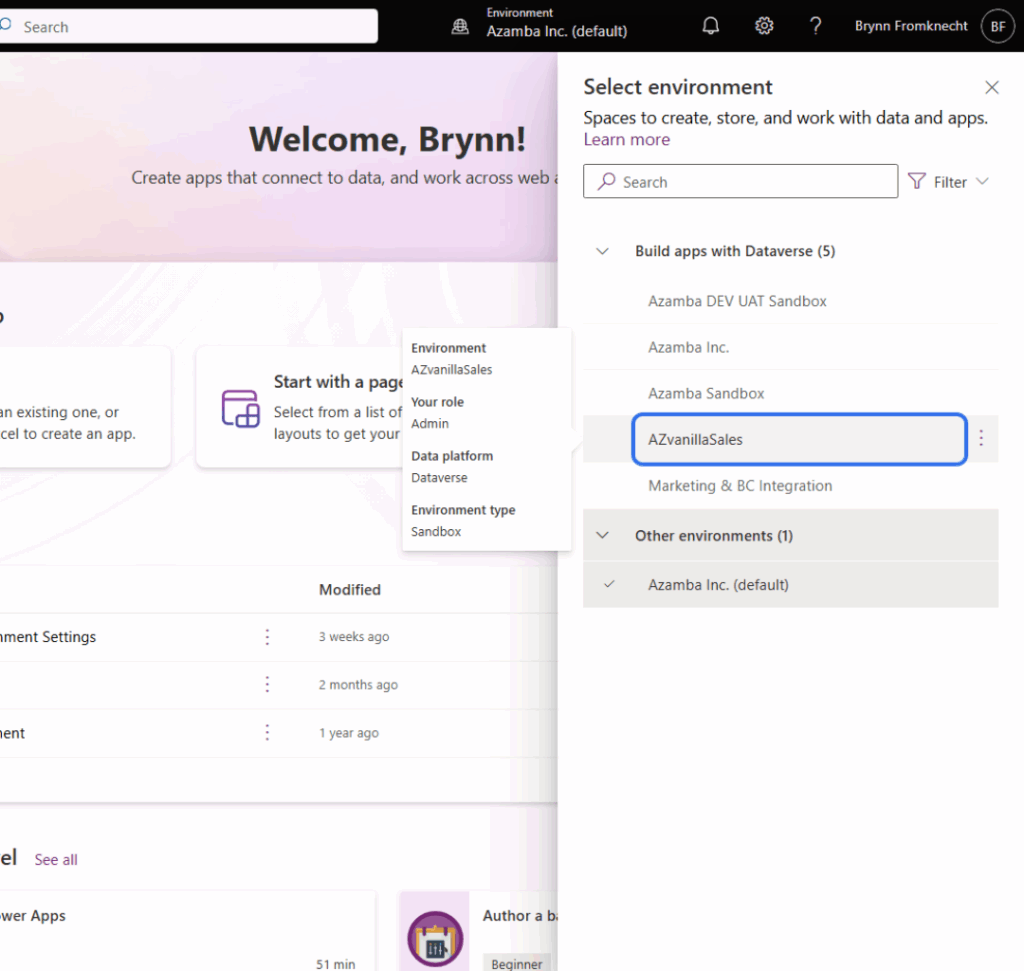
- Open your solution
- Open your existing app (e.g., your current Sales app).
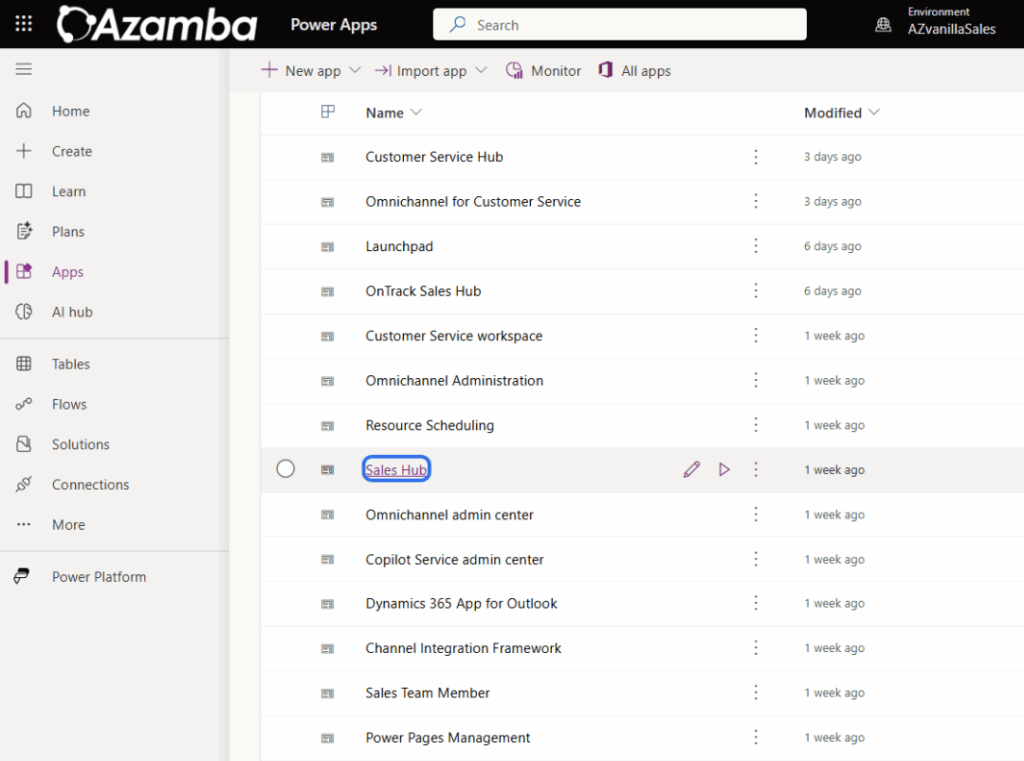
- Click the Edit icon or select “…” > Edit.
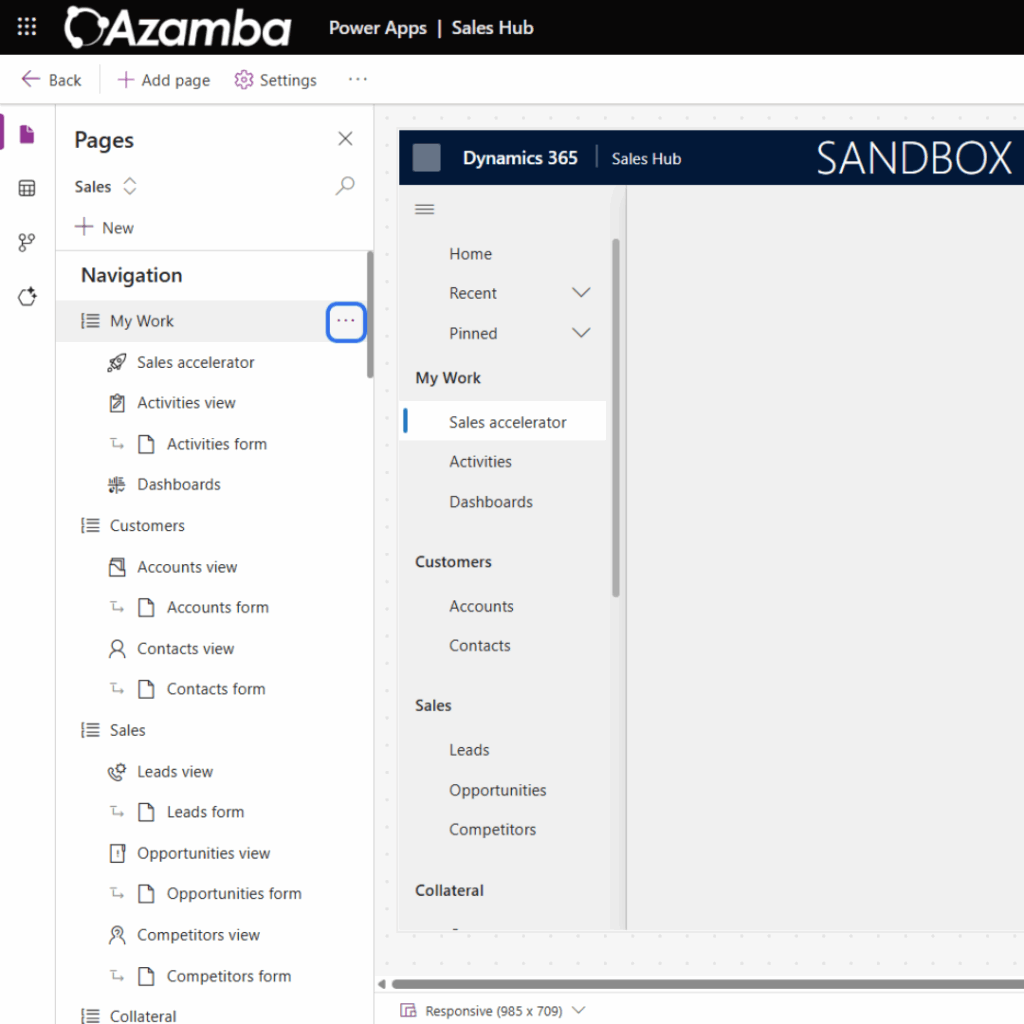
- In the Site Map, choose where you want LaunchPad to appear.
- Add a new group/area (optional) by right-clicking an existing group.
- Select + Add Page from the command bar.

- Set Type = Web Resource
Name: LaunchPad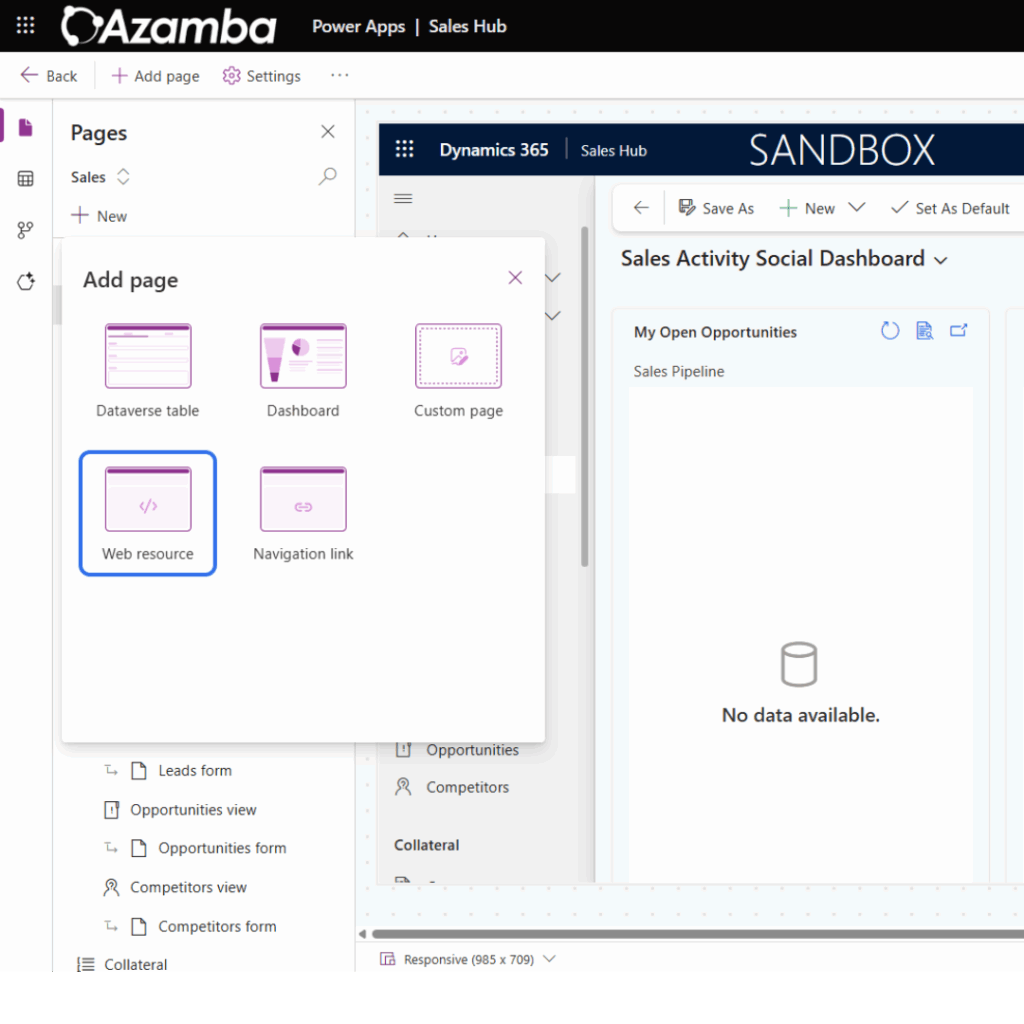

- Save & publish.
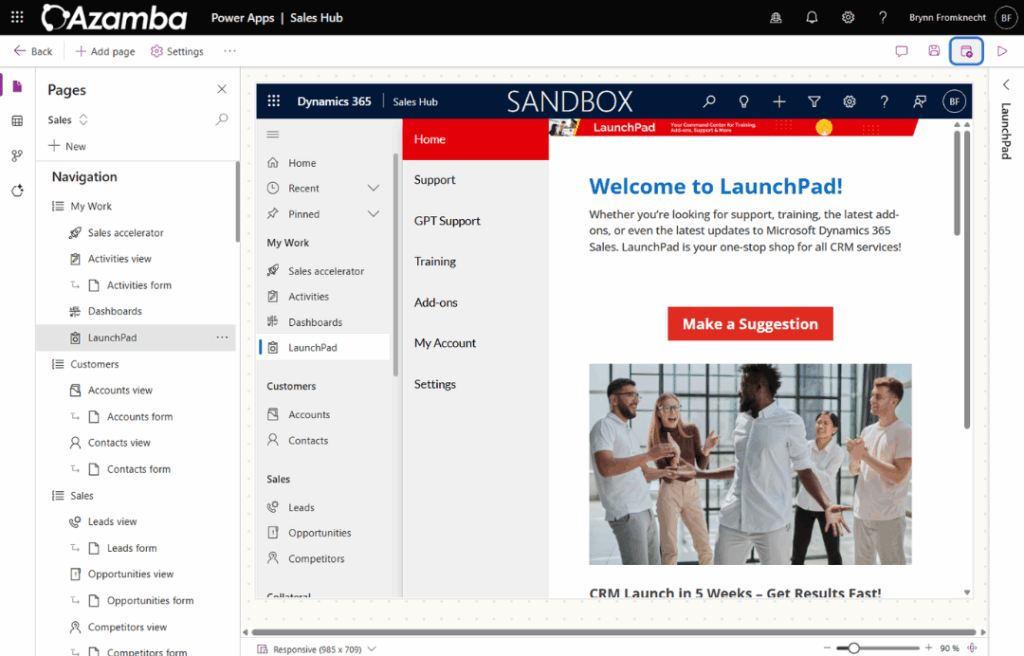
Now LaunchPad is available right inside your favorite CRM workspace.
How To Use The OnTrack Sales Hub
Looking for a clean slate?
The OnTrack Sales Hub gives you a streamlined, best-practice workspace, ready to go out of the box.
1. In Power Apps, go to Apps in the left menu.
2. Look for OnTrack Sales Hub and LaunchPad.
Click the play icon to open and start using them right away.
Understanding Security Roles
Security Roles & Access
When adding the solution to your CRM, the OnTrack Sales security role will be added automatically as part of the installation process.
This role includes all the permissions required for using OnTrack Sales Hub and all Azamba Add-Ons out-of-the-box.
To give your user access to LaunchPad and accompanying Add-Ons, you will need to assign them the OnTrack Sales security role.
Please review this role to make sure it aligns with your existing security hierarchy and doesn’t override or conflict with any custom roles or business unit restrictions you’ve already set up.
Why Security Roles Matter
Security roles control what users can see and do in CRM, and all the included Add-Ons (like EZ Buttons, EZ Projects, and more).
The right roles ensure your team can create, edit, and use the tools they need without unnecessary risk.
If a user can’t access certain features (like creating EZ Buttons), you may need to update their security role.
How to Check and Update User Security Roles
Step-by-Step:
- Go to the Power Platform Admin Center > Manage > Environments
- Select your environment
- Click see all users
- Find the user in question
- Open their user profile
- Under Summary and Direct Assigned Roles, select Manage Roles
- Scoll to find OnTrack Sales role
- Select and confirm
Frequently Asked Questions
Explore answers to the most common questions about our OnTrack Sales Hub and LaunchPad, designed to enhance your CRM experience.
What is OnTrack Sales Hub?
It’s a streamlined, user-friendly CRM workspace built by Azamba, based on best practices from hundreds of real implementations.
It’s designed to be easier to use, faster to deploy, and more productive than the default Sales Hub.
Why is it a Single Solution?
To keep things simple, wee made our solution a single file so that you have one install, one update, and all the essentials included.
Do I have to switch everything?
No. Use OnTrack as your main workspace, or just add LaunchPad to your current CRM app.
You’re always in control.
Is OnTrack Sales Hub really free?
Yes! OnTrack Sales Hub and LaunchPad are free to install and use.
Some advanced Add-Ons may offer free trials or paid upgrades, but you’re always in control, no hidden fees.
Will this affect my live CRM data?
No. Installing and testing in a sandbox ensures your live data and setup stay safe. You choose when (or if) to move to production.
Where can I find installation steps?
Detailed installation steps are available in the ‘Installation Steps’ section, guiding you through the process with clear instructions.
How do I check or update security roles for my team?
See the “Security Roles & Access” section above for step-by-step instructions.
What do I do if a user is missing access?
If a user is missing acces, please make sure the OnTrack Sales Security role is assigned or that they have access to your custom security roles that includes permissions for the Add-Ons you want them to use.
Please see the Security Roles section for more on how to check and update user security roles.
Still running into roadblocks?
Book a risk-free, no-obligation call.
We’ll answer your questions, and see if a more hands-on solution might be a good fit for your goals.
Contact
Azamba Consulting Group
4044 N. Lincoln Ave #286
Chicago, IL 60618
Toll Free: (888) 724-3999
sales@azamba.com
© 2021 Azamba Inc. Privacy Policy Terms and Conditions